Ways to do it
Method 1: Create a JSON file with Terminal
Open Terminal, change to the destination folder, and run the command below. It creates an empty config.json file immediately.
touch config.jsonMethod 2: Save plain text as .json
Create a plain-text document in TextEdit or your preferred editor, then save it with a .json extension. Make sure the editor does not append .txt to the name.
Method 3: Create the JSON file from Finder
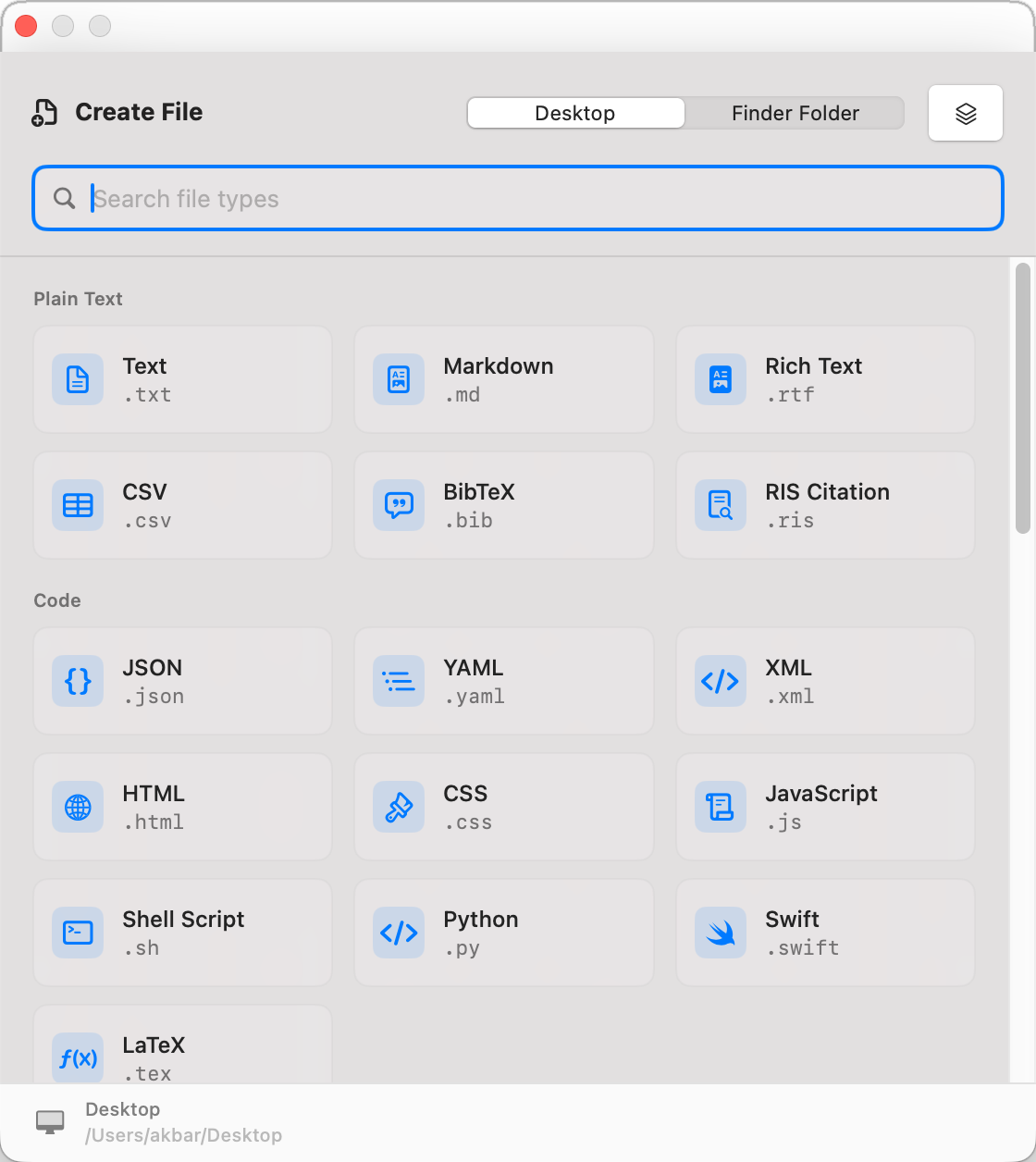
With CreateFiles+, open the destination folder, choose JSON from the Finder menu or toolbar, name the file, and keep working without a Terminal or save-dialog detour.
Choose the method that matches the job
Terminal is fastest when you already have a shell open. TextEdit works for a one-off file. CreateFiles+ is designed for repeated JSON, Markdown, text, script, and project-setup workflows that should begin in the Finder folder already open.
Create JSON files where the project already lives
Choose JSON from Finder, name the file, and keep working. The new .json file starts in the project folder, ready for VS Code, Xcode, Nova, or another editor.
What CreateFiles+ does and does not do
CreateFiles+ creates the starter file and puts it in the right folder. It does not validate or edit JSON content; your editor, formatter, tests, or development tools remain responsible for valid JSON.
How to do it with CreateFiles+
- Open the folder where the JSON file should live.
- Open CreateFiles+ from Finder, the menu bar, or a shortcut.
- Choose JSON File.
- Rename the new .json file and open it in your editor.
Frequently asked questions
Can I create a JSON file without Terminal?
Yes. Save a plain-text document with a .json extension, or use CreateFiles+ to create a blank .json file from Finder, the toolbar, the menu bar, or Control-Option-N.
Does CreateFiles+ validate JSON?
No. CreateFiles+ creates the starter file; your editor or development tools can validate the JSON content.
Related CreateFiles+ guides
Create the file in the Finder folder you already have open.
Try the direct-download app free for 7 days with no card, or purchase CreateFiles+ through Apple.